
Browse movies by studio
Start with a studio or the movie Top 10. If you already know a title, use Search and choose Movies or Series to narrow the results.
Browse the studio guide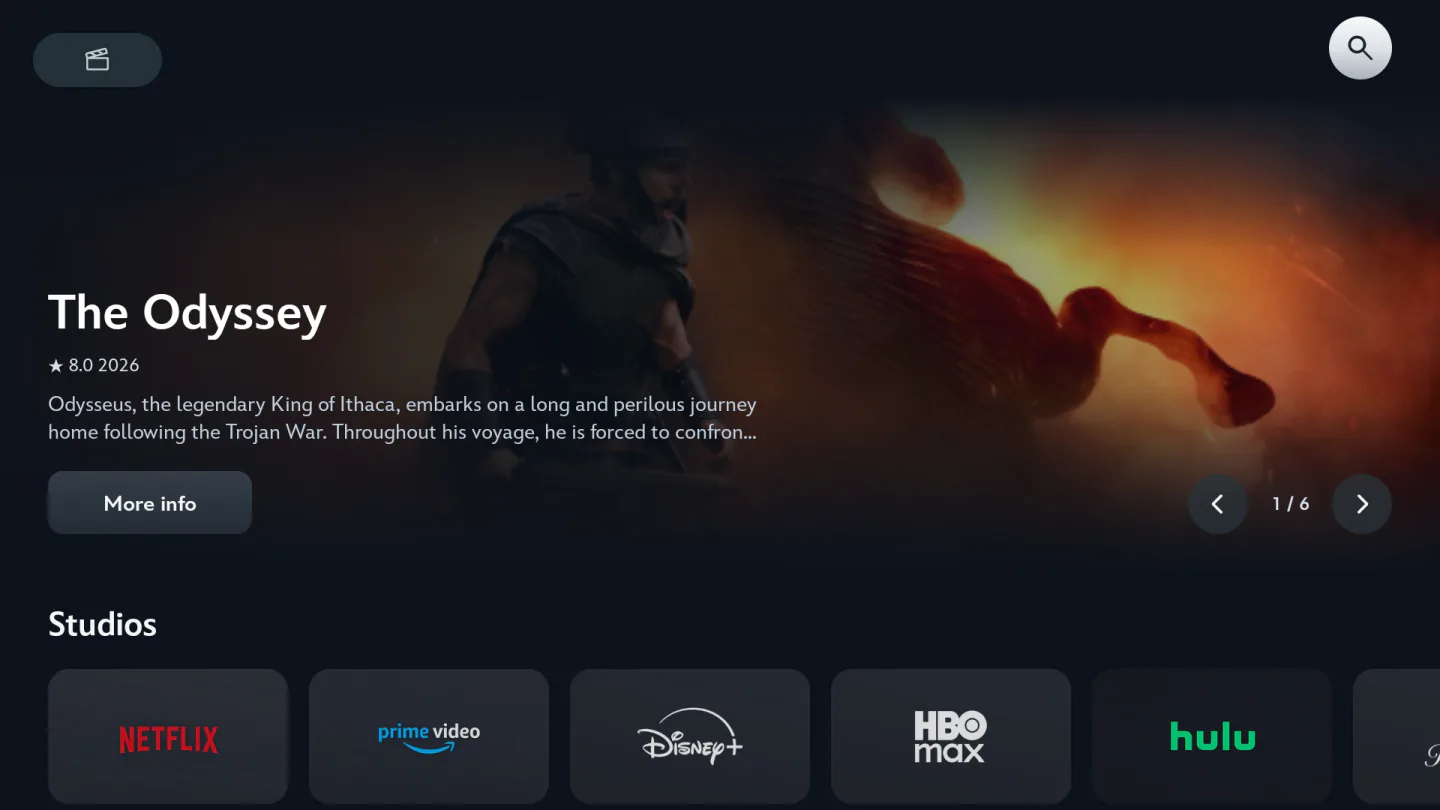

Find your next film, follow live sports, and save your favorites with Voltra TV on Android and Fire TV.
Start with a studio or the movie Top 10. If you already know a title, use Search and choose Movies or Series to narrow the results.
Browse the studio guideExplore the featured title and categories, or search for a specific series. On a show’s details page, use the season selector to reach its episode list.
Choose a season or episode
Start in Live now for games already underway. Open Schedule to see upcoming fixtures, including starts after midnight. Each sports server supplies its own lineup.
Read the sports schedule guide
Choose a server, search its channels, then save the ones you watch regularly. My List groups those channels together so you can return without repeating the search.
Find a live channel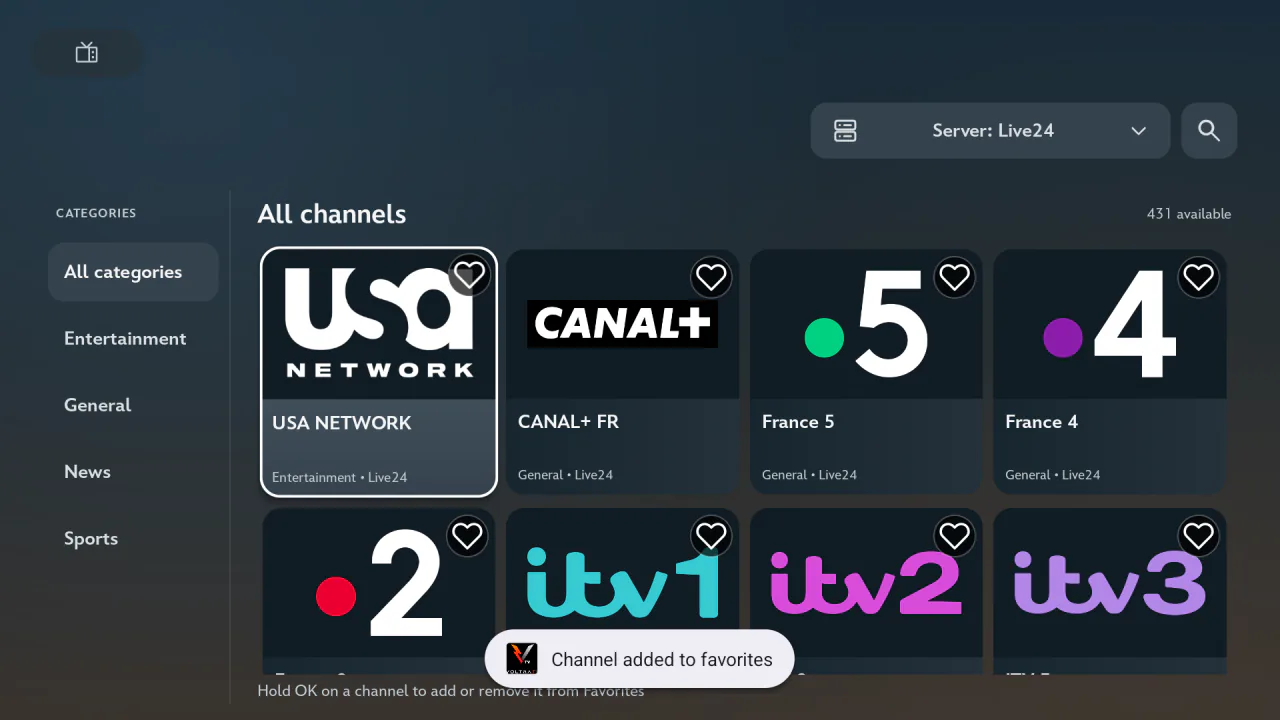
Bring up the controls with your TV remote or a tap on your phone. These are the tools you can use while a movie or episode is playing.

Choose a track for the current title. Open Appearance to adjust the size, outline and background until the dialogue is easy to read.
Set up your captionsCheck the resolutions the active source offers. Leave quality on Auto for a variable connection, or select a fixed resolution for this session.
Compare quality settingsIf one source stalls, open the server selector. Choose a provider, then an available subserver. The new source may offer different tracks and resolutions.
Switch playback servers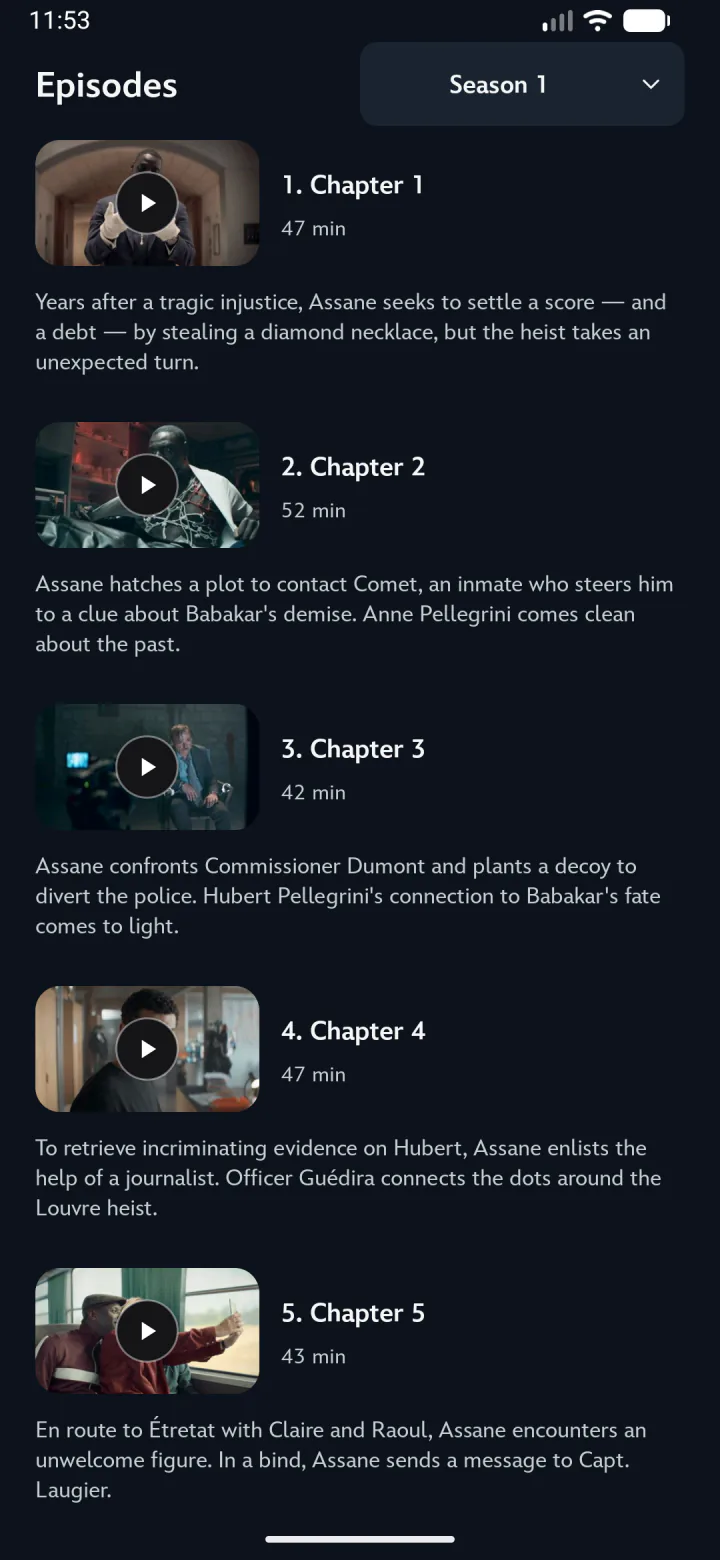
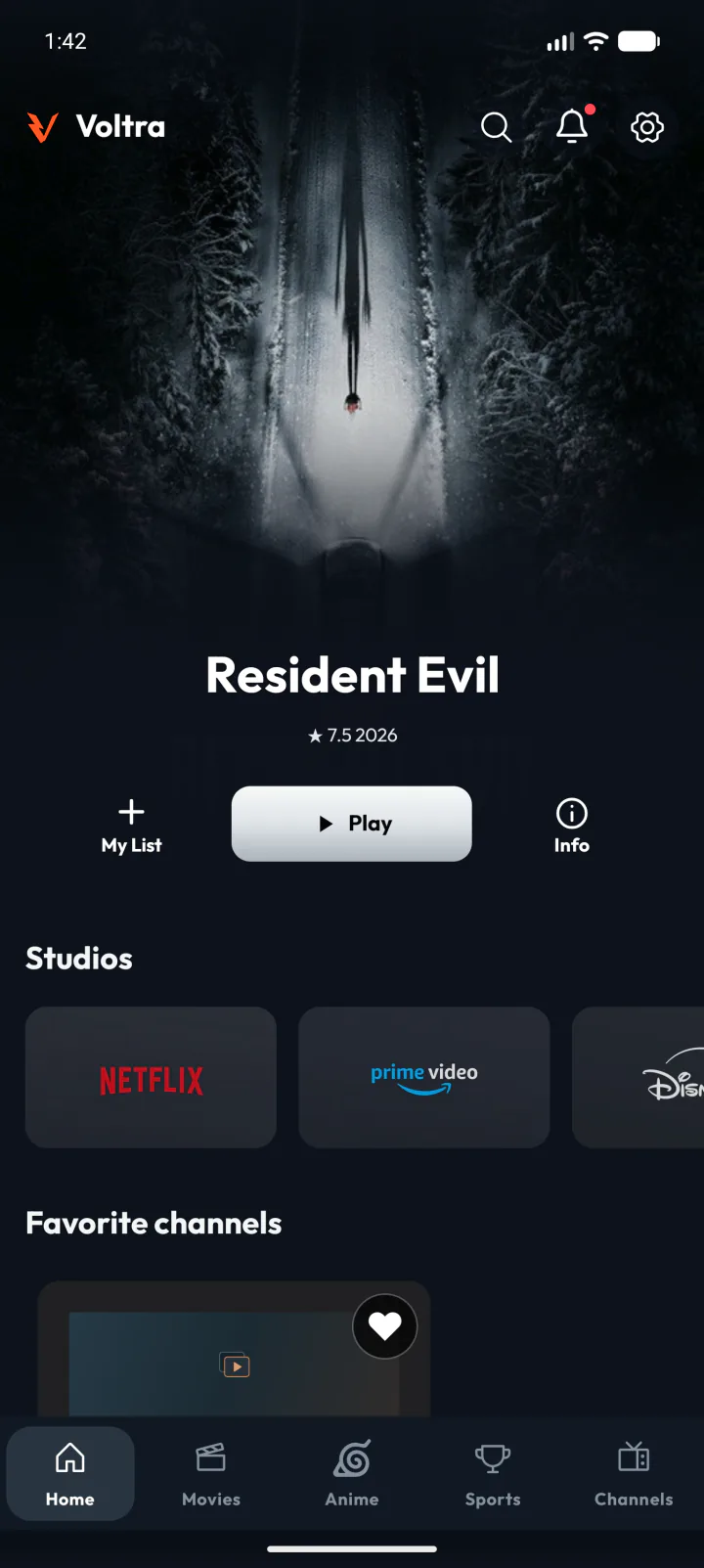
Use Continue Watching to resume saved progress on this device. To choose a different episode, open the series, pick a season and check the progress strips beneath the episode artwork.
Find your saved progressSave a movie, series, anime title or channel. My List has a tab for each, so the film you marked for later stays separate from your favorite live channels.
Use My ListUse the TV APK for Android TV, Google TV and compatible Android-based Fire TV devices. Use the mobile APK for Android phones and tablets. Both builds require Android 6.0 (API 23) or later.
On compatible Fire OS 6 or later devices, open Downloader and enter 1165642. Follow the TV installation guide to install the TV APK. Fire TV devices running Vega OS cannot install Android APKs.
Build 14 is the Android version code. The version name displayed by Android for this release is 13.0. Both official APKs use these same version numbers.
Voltra organizes movie, series, anime, channel and sports listings in one app. Playback uses available third-party sources, so availability, subtitles and quality can vary by title and region.